VGI Configuration Setup
The VGI Configuration Setup utility enables you to edit the contents of a vgi.vdef file.
Running VGI Configuration Setup
To create a vgi.vdef file
-
Enter the following at the system prompt:
vgi -setup
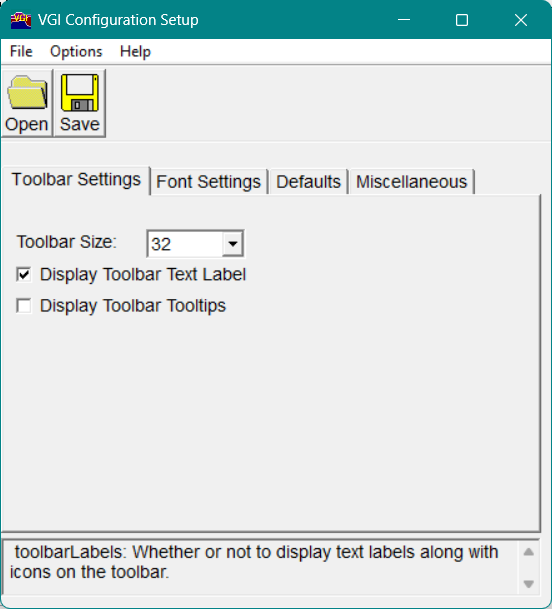
Figure1 - VGI Configuration Setup dialog
Opening a File
To open a file for editing
-
On the toolbar, click the Open button.
-or-
-
On the File menu in the menu bar, select Open .
The values that appear in the fields will correspond to the values of the opened file. If you want to change these values, simply enter new values in the appropriate fields.
Saving a File
To save a file that you have edited
-
On the toolbar, click the Save button.
-or-
-
On the File menu in the menu bar, select Save .
If this is the first time you have saved this file, the Save As window will appear, in which you can enter a file name. If you have previously saved this file, when you select Save , you will overwrite what you previously saved.
To save a previously saved file under a new name
-
On the File menu in the menu bar, select Save As .
The Save As window appears, in which you can enter a new file name.
Restoring Default Values
After making changes in the VGI Configuration Setup dialog, you may decide not to apply them.
To restore the file values to their original state (removing any changes you had made in the VGI Configuration Setup dialog)
-
On the Options menu in the menu bar, select Restore Defaults .Note If you have already saved the changes you made in the VGI Configuration Setup dialog, you will need to select Save again after restoring the default values if you want to save the defaults. Otherwise, the values will revert to the last-saved values when you exit.
Getting Keyword Information
Located at the bottom of the VGI Configuration Setup dialog Figure 1 is an area that displays a brief description of the last-selected keyword entry (each field in the dialog has an associated keyword). For a more complete description of a keyword, including defaults where applicable,
Editing Your VGI Configuration Files
In the VGI Configuration Setup dialog, you can edit vgi.vdef files by selecting the following tabs: Toolbar Settings, Font Settings, and Miscellaneous.
Toolbar Settings Tab
Use the options on the Toolbar Settings tab to modify the toolbar settings for your vgi.vdef files.
Note If you elect to display tooltips, tooltips pop up when the mouse pointer rests on an area that displays them, providing you with information about that area
|
Toolbar Size
From the drop-down list, select the size, in pixels, for the toolbar.
Display Toolbar Text Label
Select this option if you want the toolbar to display text labels along with icons.
Display Toolbar Tooltips
Select this option if you want the toolbar to display tooltips (tooltips pop up when the mouse pointer rests on an area that displays them, providing you with information about that area).
Font Settings Tab
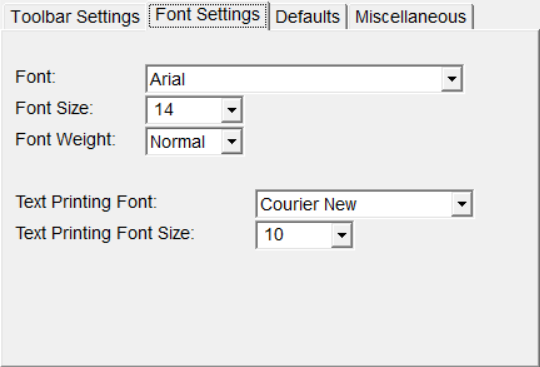
Use the drop-down lists on the Font Settings tab to modify the fonts for your vgi.vdef files.
Figure2 - Font Settings Tab
Font
From the drop-down list, select the font that you want to use as your default.
Font Size
From the drop-down list, select the default size, in pixels, you want to use for your font.
Font Weight
From the drop-down list, select the initial weight you want to use for your font.
Text Printing Font
From the drop-down list, select the font that you want to use for your default when printing text.
Text Printing Font Size
From the drop-down list, select the default size, in pixels, you want to use when printing text.
Defaults Tab
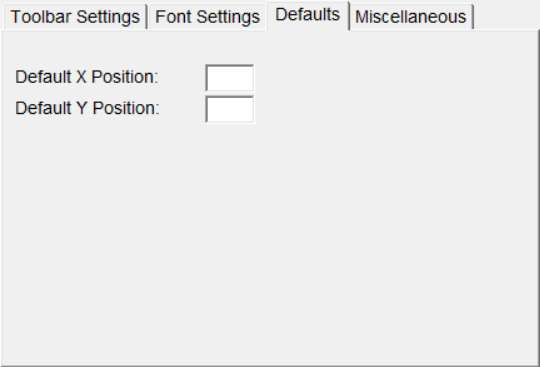
Use the fields on the Defaults tab to specify the default X and Y coordinates for the opening positions for Vsystem graphical applications.
Figure3 - Defaults Tab
Default X Position
The default X position of the window.
Default Y Position
The default Y position of the window.
Miscellaneous Tab
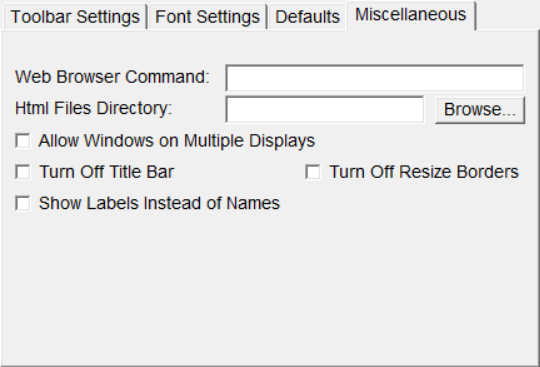
Use the fields on the Miscellaneous tab to specify how your vgi.vdef files access the Vsystem on-line Help files.
Figure4 - Miscellaneous Tab
Web Browser Command
Enter the command to use the launch the Web browser you want to use to display Help files. For example, "netscape" will cause the help command to open the Web pages with the Netscape Web browser.
Html Files Directory
Enter the location of the Vsystem HTML Help files. Leave this field blank to use the Help files located in the default Vsystem documentation HTML directory, or you can specify the directory location of the HTML files if they were placed in a different directory. Or, use the Browse button to locate the Help files on your machine.
Allow Windows on Multiple Displays
Select this option if you want to allow a window to go into multiple displays.
Turn Off Title Bar
Select this option to turn off the title bar on the top of all Vsystem graphics applications.
Turn Off Resize Borders
Select this option to turn off the window resize borders on all Vsystem graphics applications.