This utility builds a vsystem.vdef file for configuring Vaccess and Vczar.
Starting the Vsetup Utility
To create a vsystem.vdef file
Enter the following at the system prompt:
vsetup
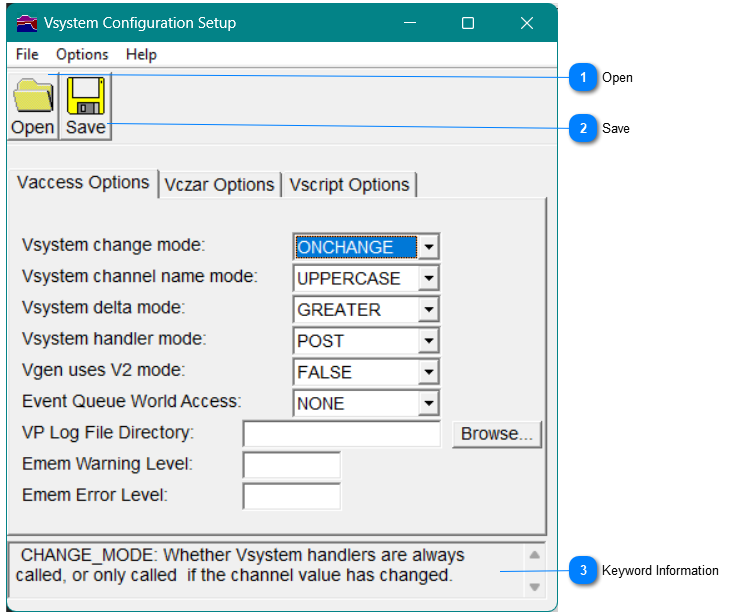
When you enter the vsetup command, the Vsystem Configuration Setup dialog appears, as shown in Figure 29.
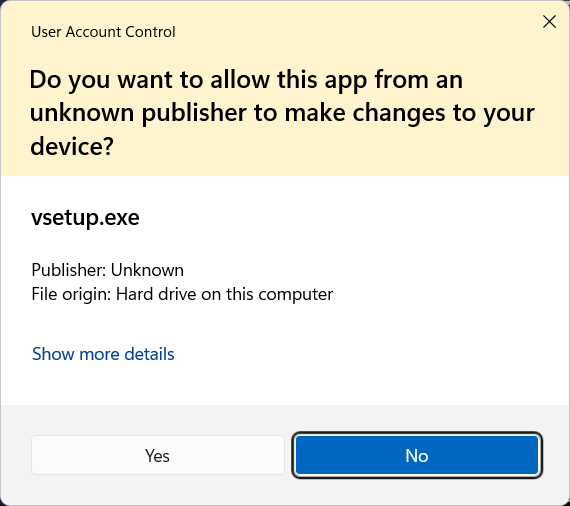
WIN On Windows you may see the User Account Control dialog. Please select Yes. This occurs automatically on Windows because setup is in the name.
Figure28 - Windows User Account Control
Using Vsetup
Figure29 - Vsystem Configuration Setup dialog
Open
To open a file for editing, on the toolbar, click the Open button or on the File menu in the menu bar, select Open.
Save
To save a file that you have edited, on the toolbar, click the Save button or on the File menu in the menu bar, select Save.
If this is the first time you have saved this file, the Save As window will appear, in which you can enter a filename. If you have previously saved this file, when you select Save, you will overwrite what you previously saved.
To save a previously saved file under a new name, in the File menu, select Save As. The Save As window appears, in which you can enter a new filename.
Search order for the vsystem.vdef file:
The Vsystem root directory.
The Vsystem host-specific directory.
The user's home directory (translation of HOMEDRIVE and HOMEPATH for Windows, sys$login for OpenVMS, and HOME for UNIX).
The current working directory.
Keyword Information
This area displays a brief description of the last-selected keyword entry (each field in the dialog has an associated keyword).
Restoring Default Values
After making changes in the Vsystem Configuration Setup dialog, you may decide not to apply them. To restore the file values to their original state (removing any changes you had made in the Vsystem Configuration Setup dialog), on the Options menu, select Restore Defaults.
Note If you have already saved the changes you made in the Vsystem Configuration Setup dialog, you will need to select Save again after restoring the default values if you want to save the default values. Otherwise, the values will revert to the last-saved values when you exit.
Vaccess Options Tab
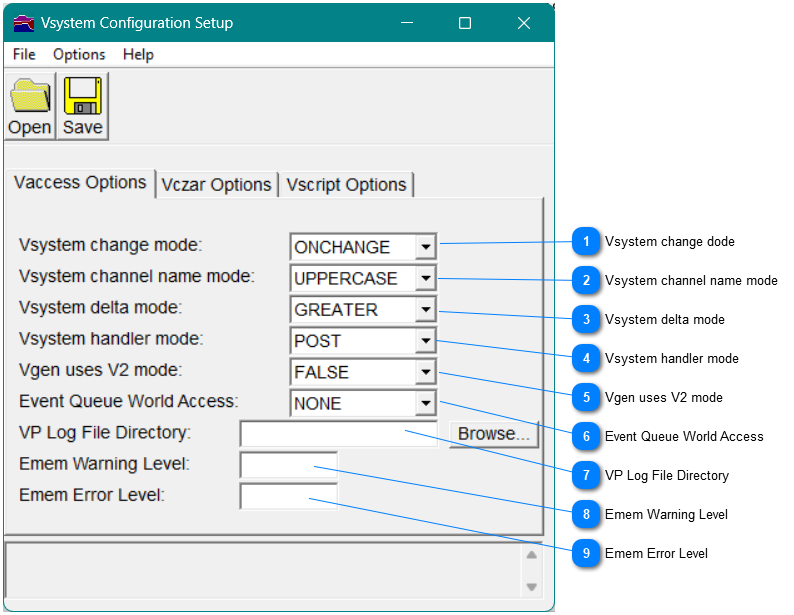
The Vaccess Options tab is used to specify the default behaviors for Vaccess. Most of these options can be overridden in the adb file for each database.
Figure30 - Vaccess Options
Vsystem change dode
From the drop-down list, select one of the following options to specify the conditions under which handlers will be called:
ONCHANGE
The handlers will be called only when the channel value has changed.
ALWAYS
The handlers will always be called, whether the channel has changed or not.
Vsystem channel name mode
From the drop-down list, select one of the following options to specify how channel name case will be handled:
UPPERCASE
Channel names will be set to all uppercase letters; channel name searches will remain case-insensitive.
KEEP_CASE
Channel names will retain their case as entered; channel name searches will remain case-insensitive.
CASE_SENSITIVE
Channel names will retain their case as entered; channel name searches will be case-sensitive.
Vsystem delta mode
From the drop-down list, select one of the following options to specify the conditions under which events are generated:
GREATER
Events are generated when the value is changed by greater than the delta of the channel.
EQUAL
Events are generated when the value is changed by greater than or equal to the delta of the channel.
Vsystem handler mode
From the drop-down list, select one of the following options to specify the timing for handler executions:
POST
Handlers execute after a channel put.
PRIOR
Handlers execute before a channel put.
Vgen uses V2 mode
This option is offered for compatibility only; users should normally not specify this option. From the drop-down list, select TRUE or FALSE.
Event Queue World Access
From the drop-down list, select one of the following options to specify the type of access allowed in Vaccess.
NONE
Creates the event queue without world read/write access. This option is the default.
WORLD_RW
Creates the event queue with world read/write access.
VP Log File Directory
Use this option to specify the directory into which the log files will be placed by the Vaccess virtual processor. The default is to place the log files in the Vsystem hostname log directory. Use the Browse button to select the directory.
Emem Warning Level
Threshold in % when a warning message will be output. By default, this is disabled. Entering a value enables the warning
Emem Error Level
Threshold in % when a error message will be output and a new process will not be able to connect to the database. By default, this is disabled. Entering a value enables the error.
Vczar Options Tab
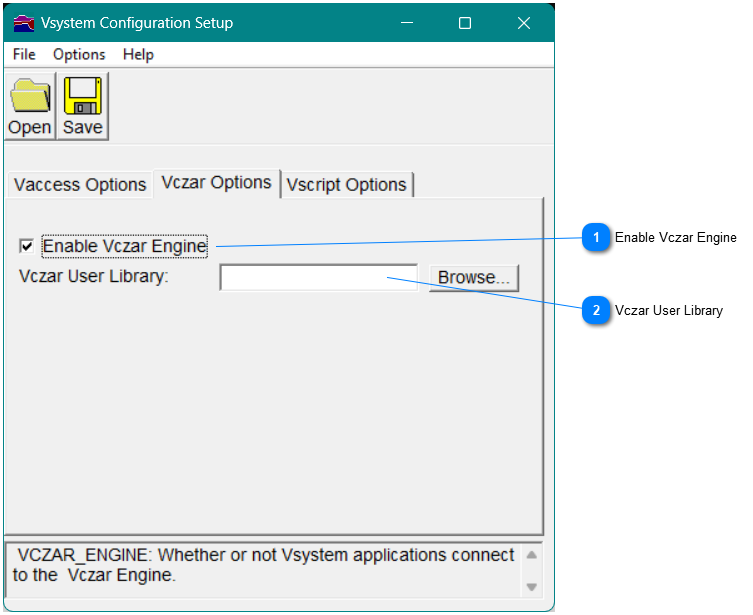
Use the options on the Vczar Options tab to specify default behaviors for Vczar.
Figure31 - Vczar Options
Enable Vczar Engine
Select this option to connect Vsystem applications to the Vczar engine.
Vczar User Library
Enter the name of a shared library file to use as a Vczar user library. Or, use the Browse button to select a file from the list.
Vscript Options
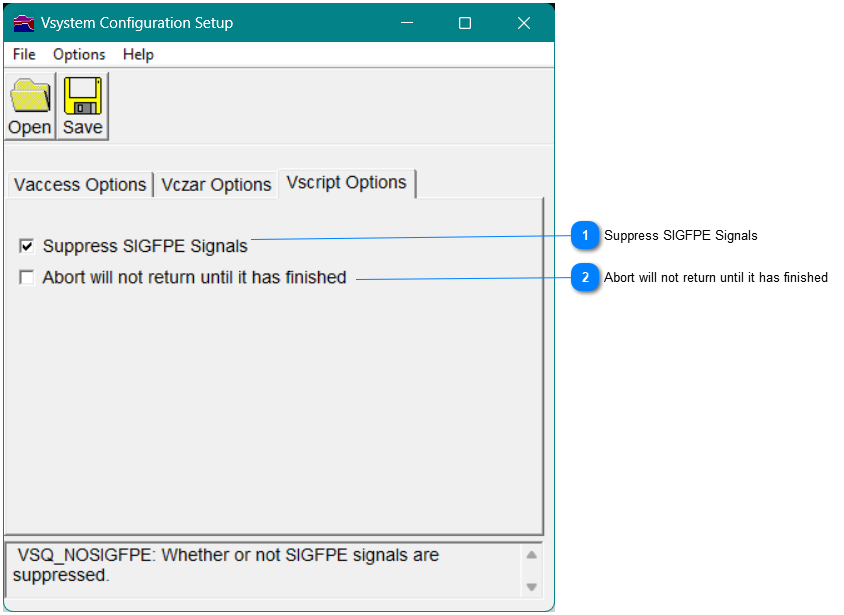
Use the options on the Vscript Options tab to specify default behaviors for Vscript.
Suppress SIGFPE Signals
Select this option to suppress SIGFPE signal output on Linux.
Abort will not return until it has finished
Select this option to ensure that the abort command doesn't return until completion of the abort. This option is useful if you have problems with timing or race when using ABORTs, particularly via the Vscript API.